Assembly
Overview
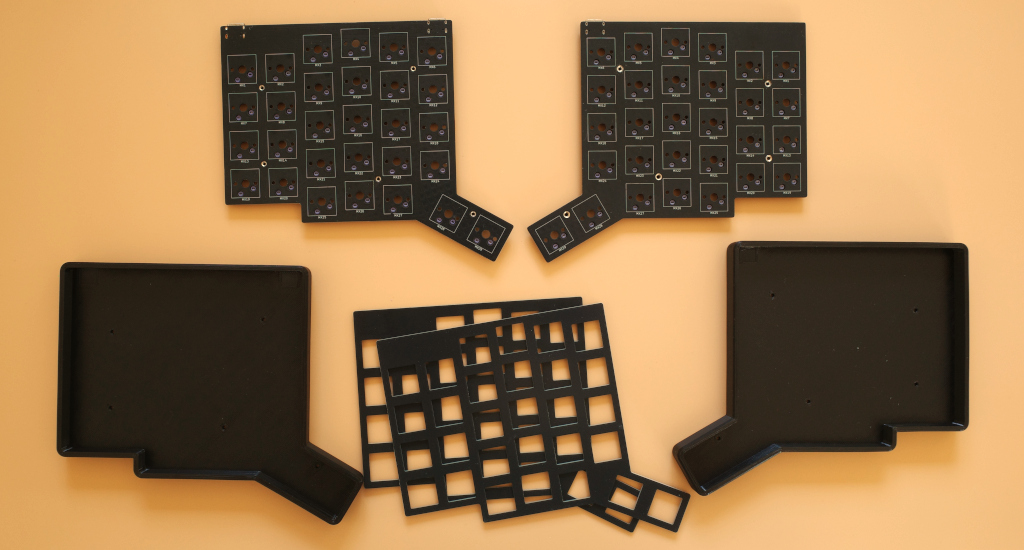
This guide covers the 3D-printed case build using the 2 PCBs, 2 reversible switch plates and 2 3D-printed cases.
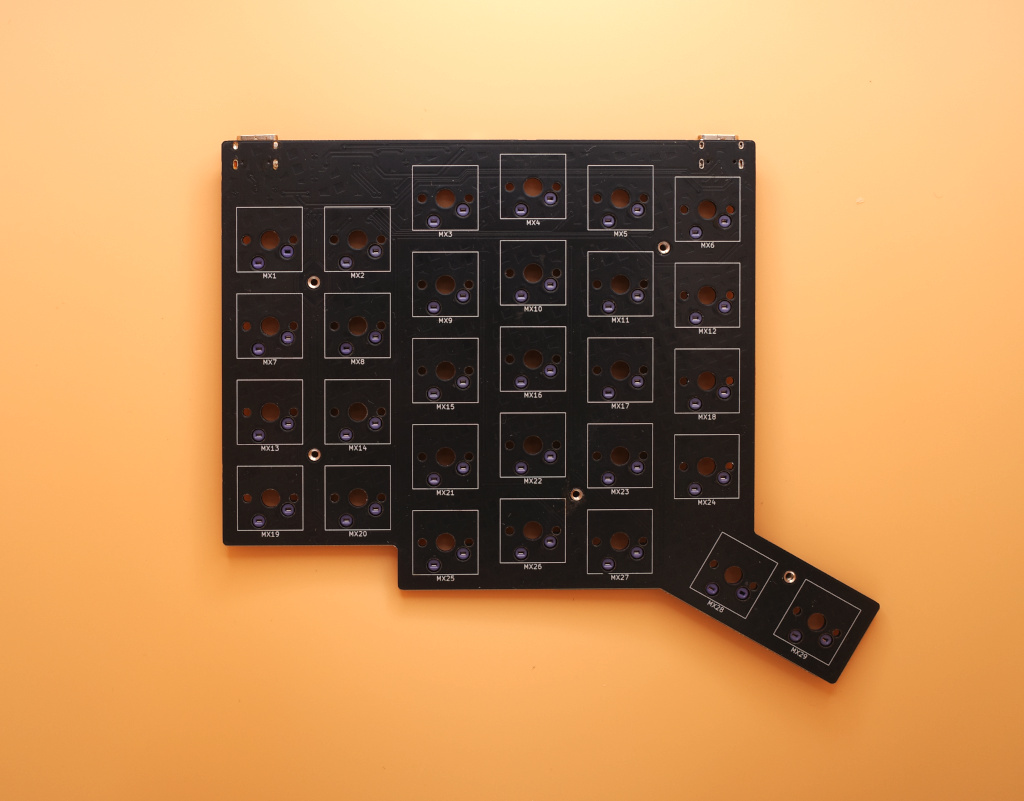
This guide walks through assembling one half (the Left half) of the PCBs since the assembly is identical on both halves. Pictured above is the Left PCB top side.
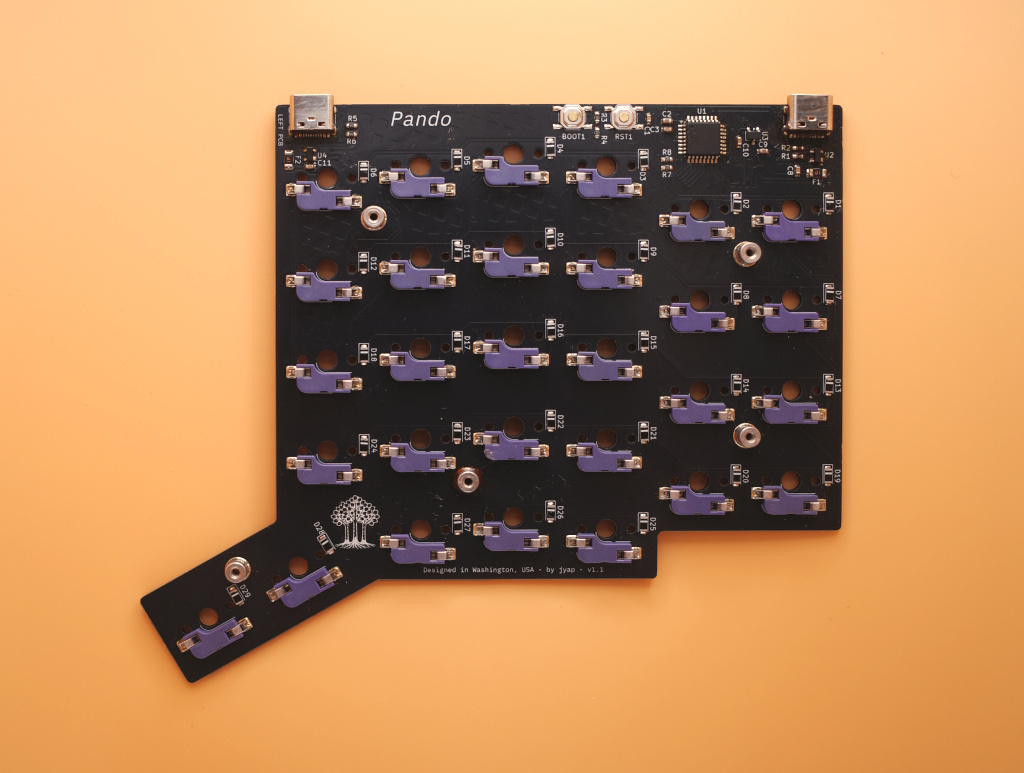
Left PCB bottom side, ready to be assembled. The Left PCB has more components and 2 USB-C ports. In the top left, you can see it says "Left PCB". In this view, the top Left USB-C port is the interconnect port (connects to the Right side PCB) and the Right USB-C port is the main port which connects to the PC.
Assembly Steps
Switches - Switch and Plate Installation
The switches are installed between the switch plate and the PCB.
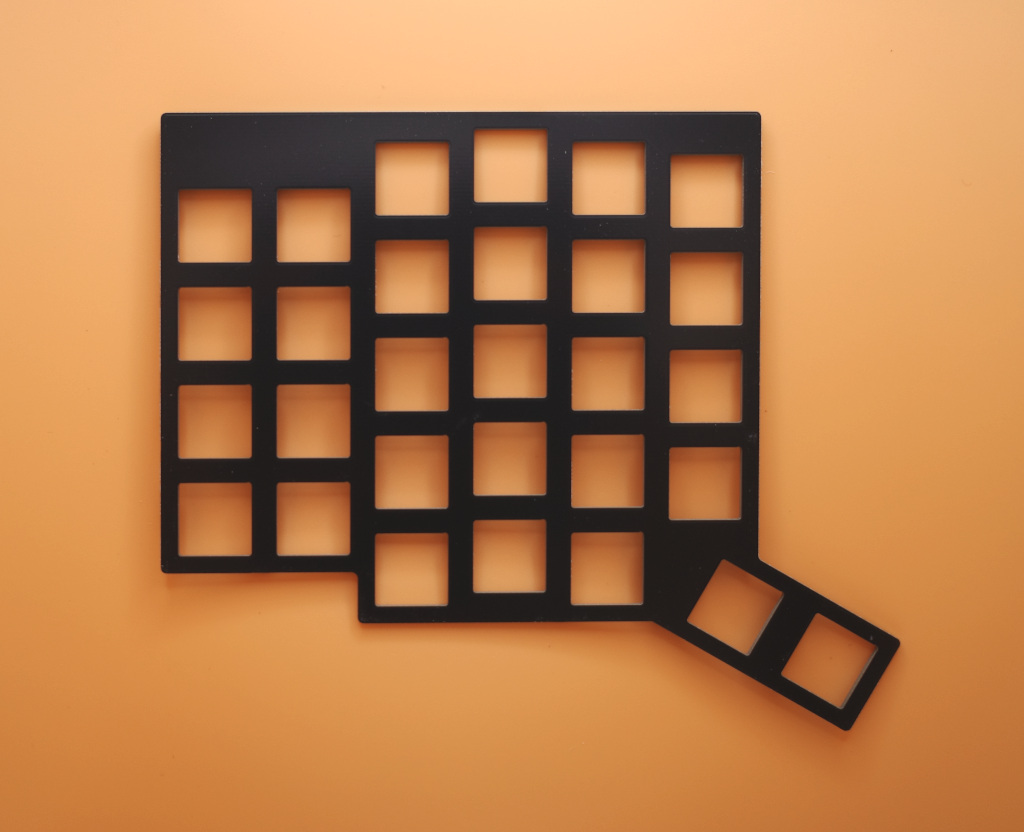
The switch plate is reversible and works for both Left and Right halves.
Installing Switches on the Plate
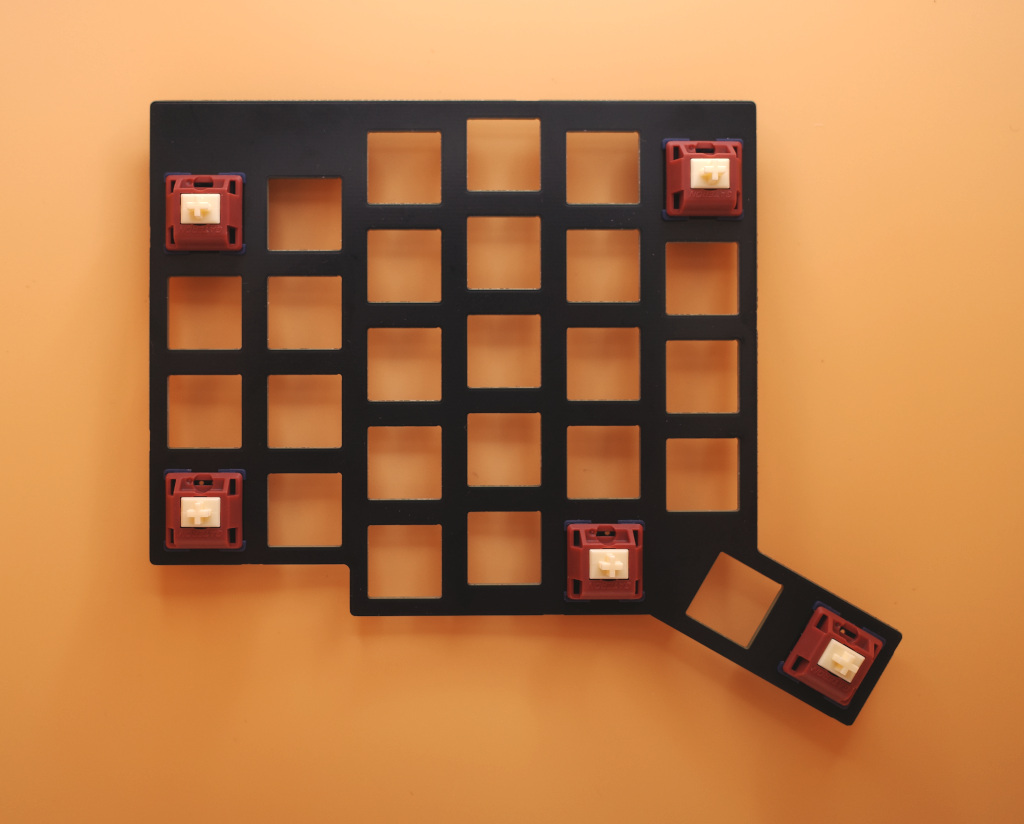
Insert guide switches into the plate. These are initial switches used to align the plate with the PCB before inserting the rest of the switches.
Place switches on the edges for structural support. Use the same 5 positions pictured.
The switch pins must face down (towards the bottom of the plate) to align with the hotswap sockets.
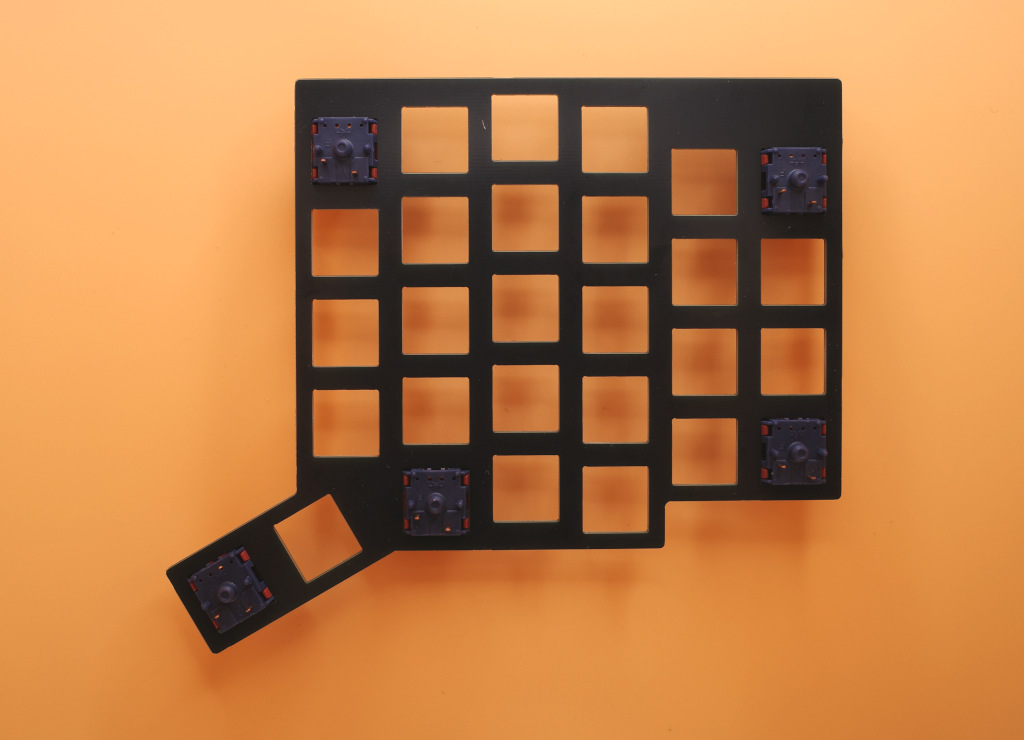
Attaching Switches to PCB
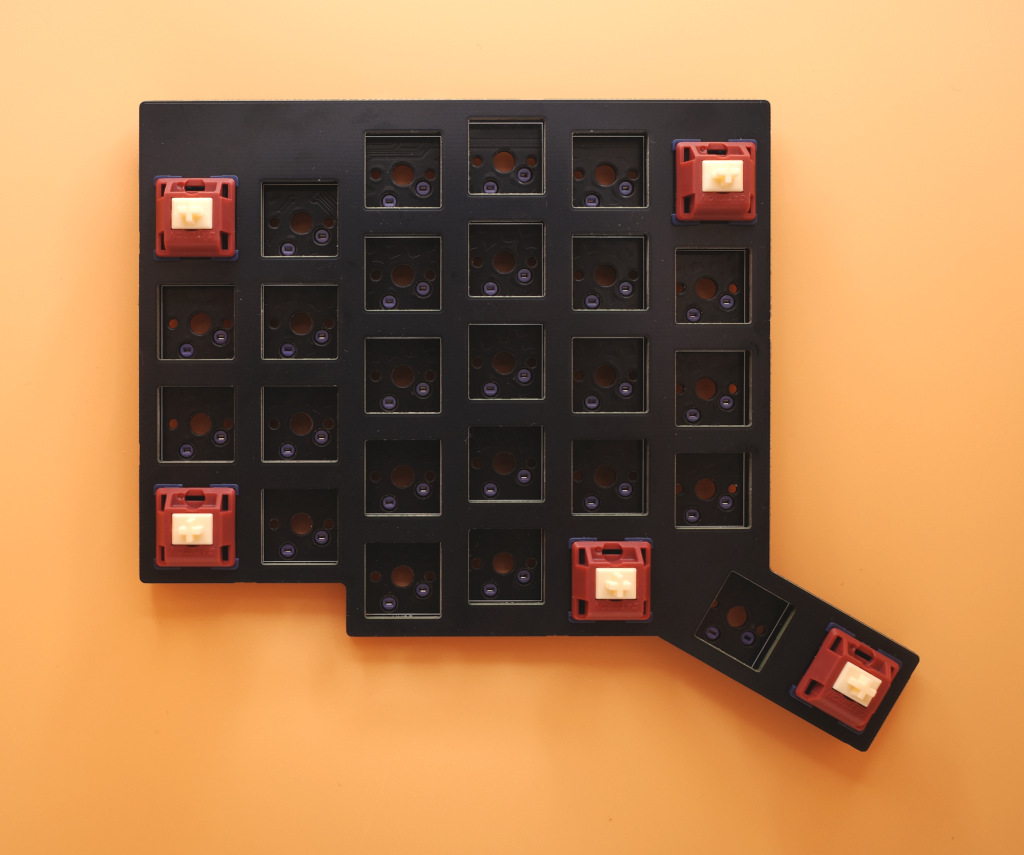
Place the switch plate onto the PCB. Fully press the switches into the hotswap sockets. When inserting the switches, press on the back of the socket to prevent excess pressure on it from the pins.
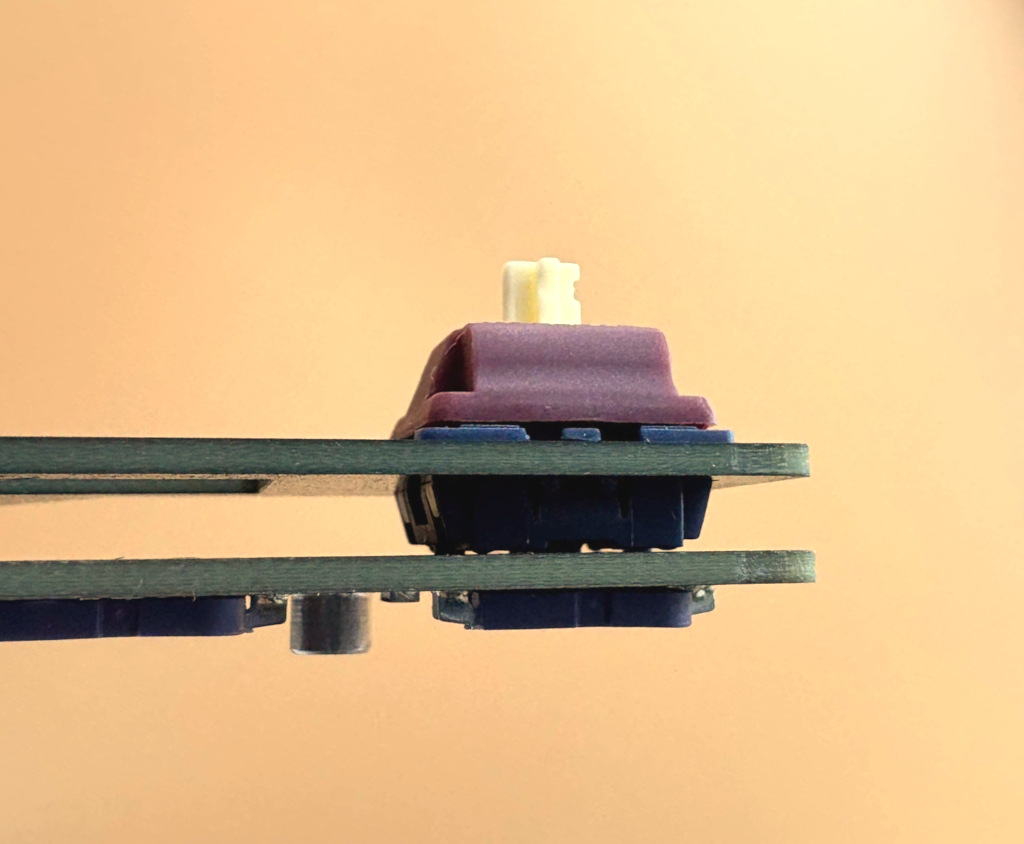
The image above shows a switch sitting flush against the PCB.
Insert the remaining switches into the PCB.
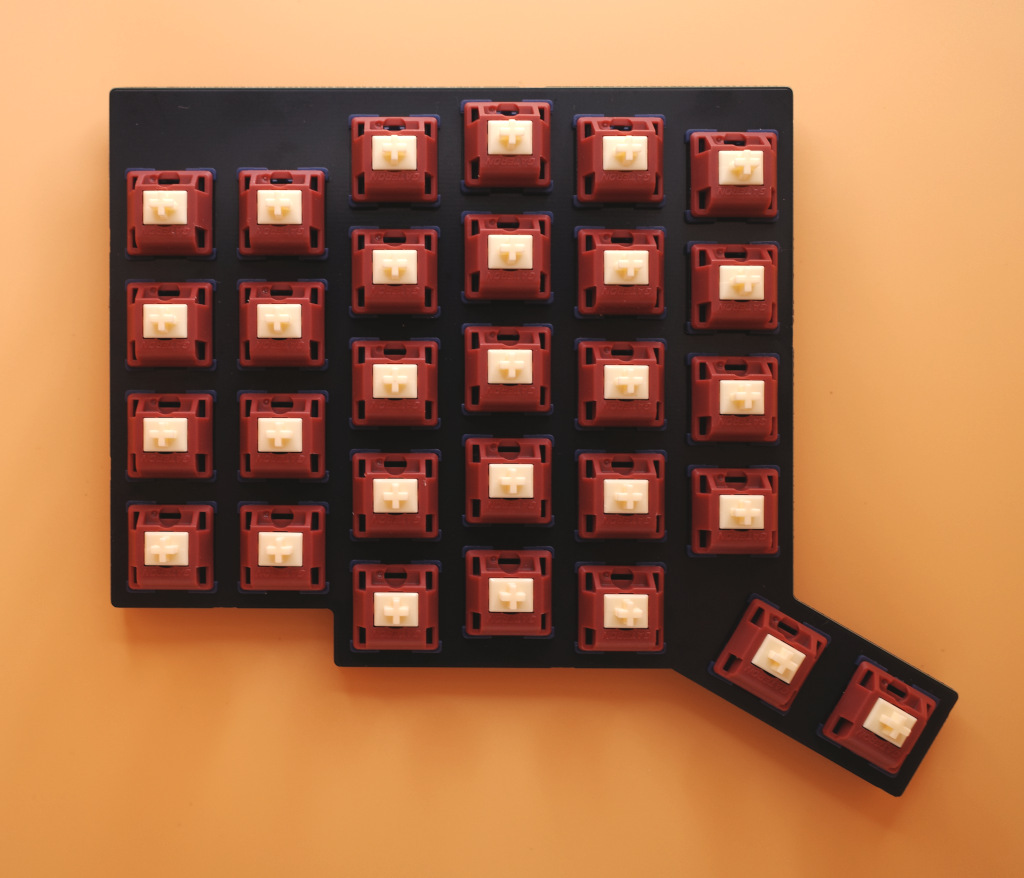
The above image shows all 29 switches inserted into the plate for one half of the keyboard.
Case
Insert PCB into Case
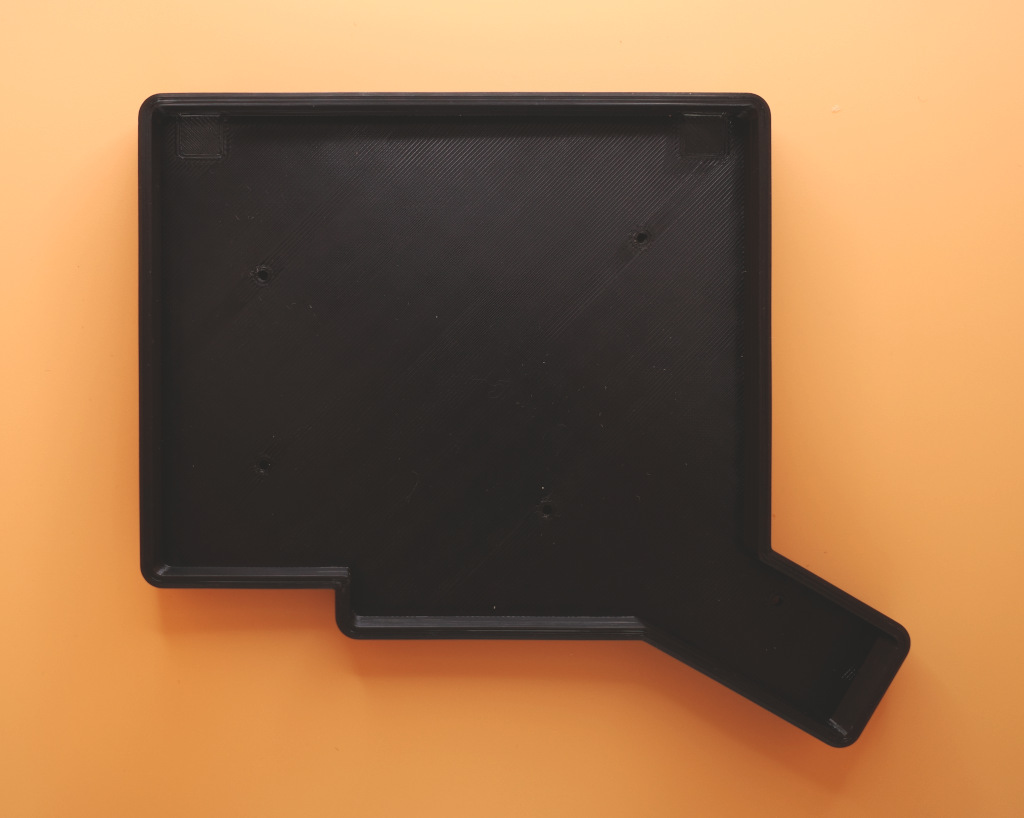
The USB-C ports on the PCB must slot into the back of the case first! The Left half has 2 USB-C ports and the Right half has 1 USB-C port.
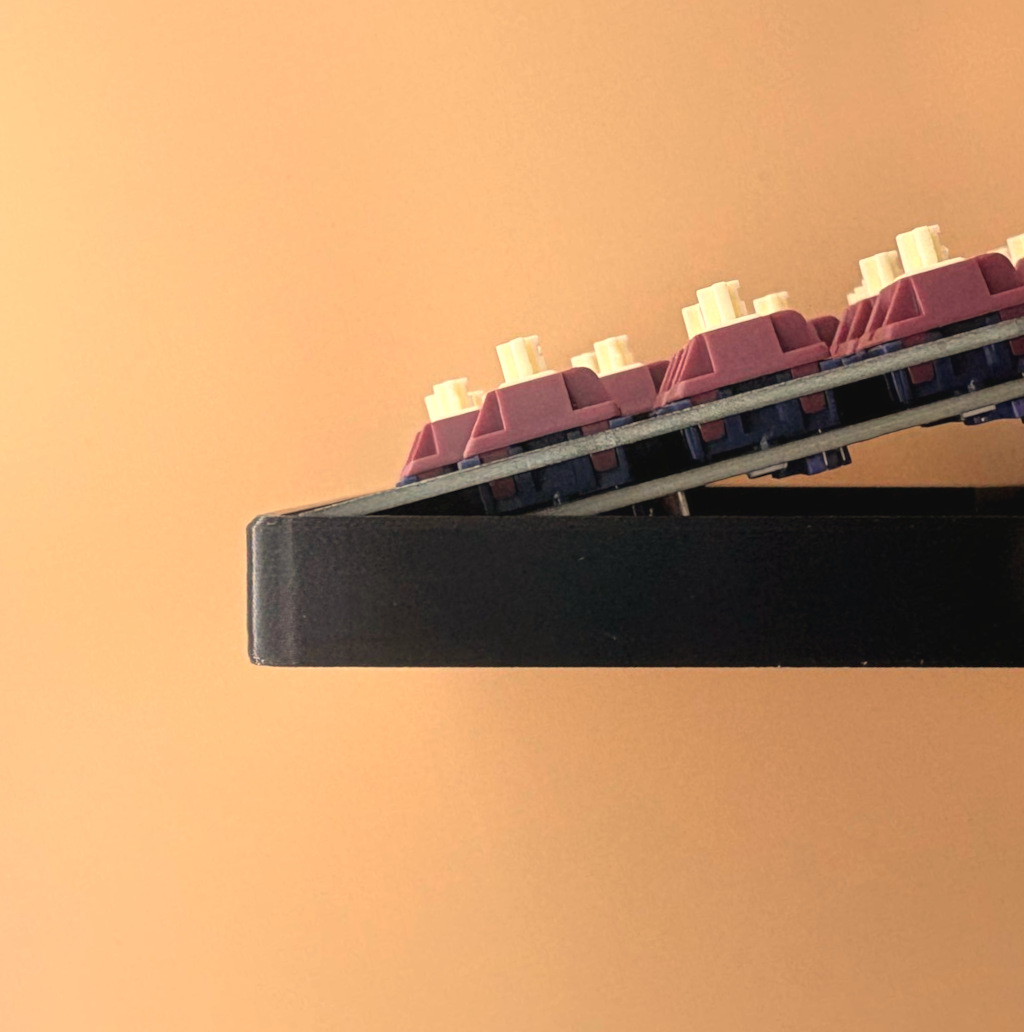
Angle the PCB and populated switch plate downwards and into the case so that the USB-C ports slide into the case openings.
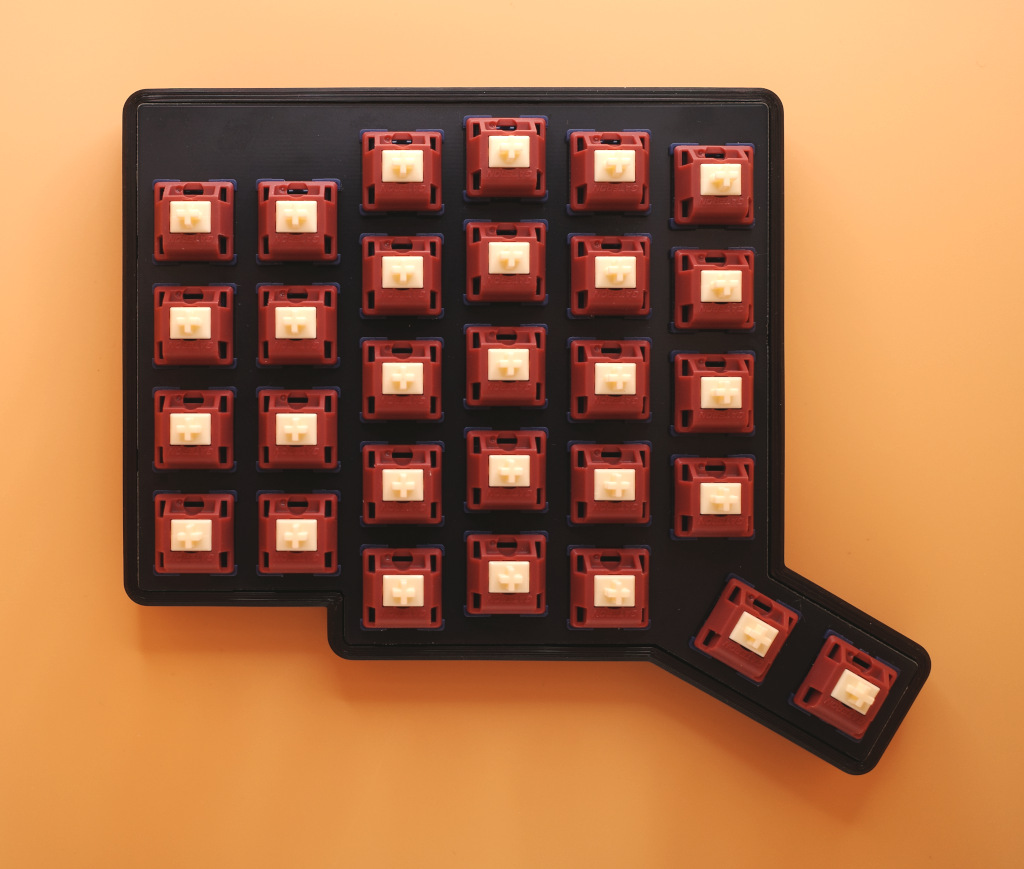
The front side can then slot into the case. When disassembling, reverse this and take the front out first.
Screw the PCB into the Case
Screw the 5 screws into the case on the bottom.
Do not over-tighten the screws as you don't want to damage the standoffs attached to the PCB.
Keycaps and Optional Bumpons
Keycaps
Add keycaps to the switches.
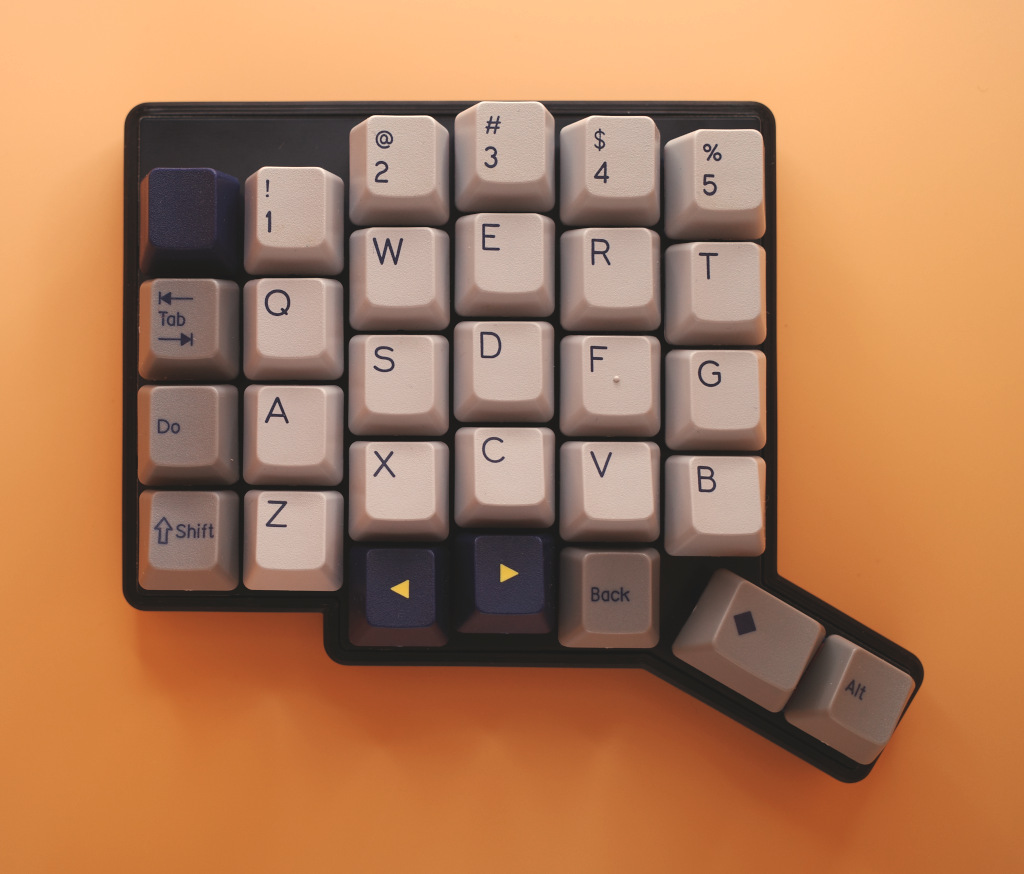
You can add keycaps to suit the layout that you deem optimal. This may come through some experimentation with layouts that you can configure through Vial.
One of the thumb keys is designed to take a 1.25U key but you can also use a 1U key.
More Pando build examples can be found in the Gallery.
A more extensive gallery of keycap options can be found in the Pando58 Gallery.
Bumpons
Optionally add the Bumpons to the bottom of the case.
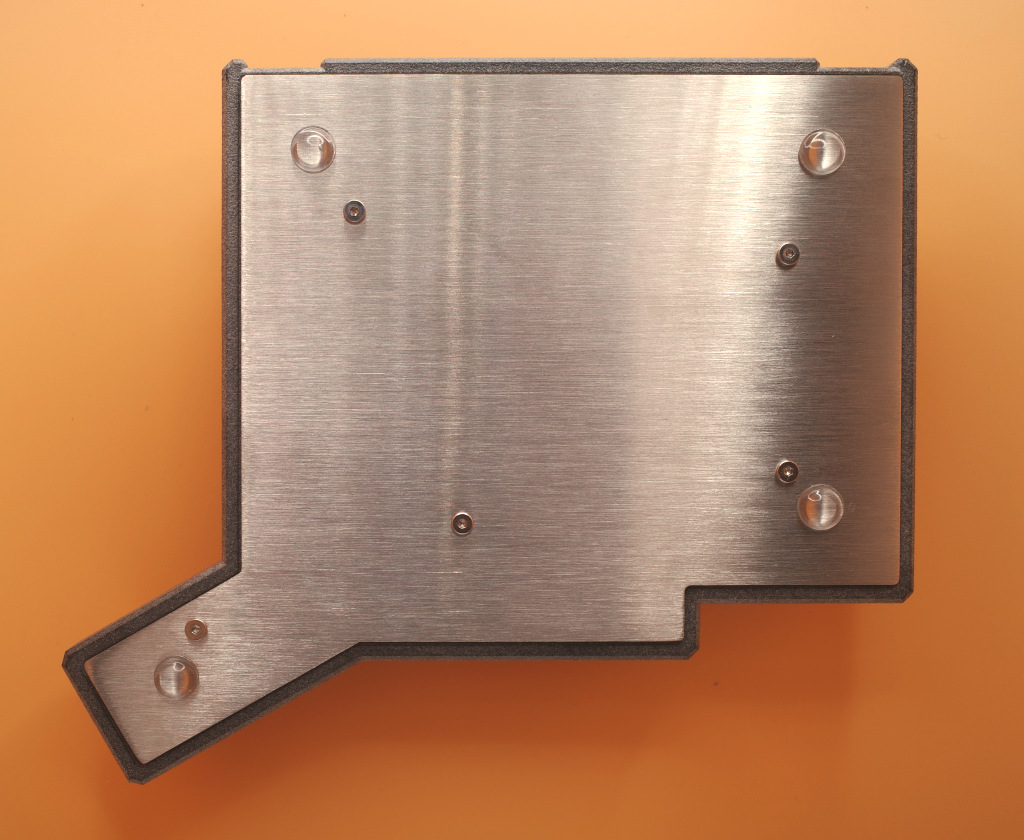
Add 4 Bumpons per side in the configuration shown.